OURAIPTV Premium Documentation

IPTV Installation Guide

Learn how to install IPTV on Firestick, Android TV, Google TV, Samsung Smart TV, LG Smart TV, Roku, Apple TV, Windows, macOS, Android, iPhone, Kodi, MAG Box, Formuler, BuzzTV, Enigma2, Xbox, PlayStation, and more using our easy step-by-step tutorials.

Easy Setup 5 Min Installation All Devices Supported 24/7 Premium Support

Interactive Device Hub

Select your streaming device below to preview its premium interface and jump directly to its complete step-by-step setup guide.

Unified Premium Ecosystem

OURAIPTV is engineered to run seamlessly across all major modern screens simultaneously. Every subscription supports multi-device synchronization with crystal-clear 4K streams, auto-updating TV guides, and zero buffering.

✓ Smart TVs ✓ Media Sticks ✓ Smartphones ✓ PC/Mac ✓ Game Consoles
Premium Hub 4K
08:00
OURAIPTV Live
TV
VOD
Series
Tablet OS
fire
4K
Samsung Tizen
Samsung TV
LG webOS
LG Smart TV
fire
Amazon Firestick
4K
Android Box
ROKU
Roku Player
Apple TV 4K
Channels
Movies
Series
PC & Laptop
12:00 📶
Smartphones
K
Kodi Player
08:00
MAG Set-Top Box
Formuler & BuzzTV
>_ SH
LINUX BOX
Enigma2 Satellite
Xbox & PlayStation
Overview Flow

General Installation Process

Follow this simple 5-step universal flow to set up and start streaming on any device of your choice.

1

Purchase OURAIPTV Subscription

Choose your plan and securely purchase an active subscription from our pricing page to receive authorization credentials.

2

Receive Credentials Instantly

Check your email or client portal for your Xtream Codes API credentials (Server URL, Username, Password) or M3U Playlist URL.

3

Install Your Chosen IPTV Player

Navigate to your device's App Store and install a premium media engine, such as IPTV Smarters Pro, TiviMate, or XCIPTV.

4

Input Subscription Credentials

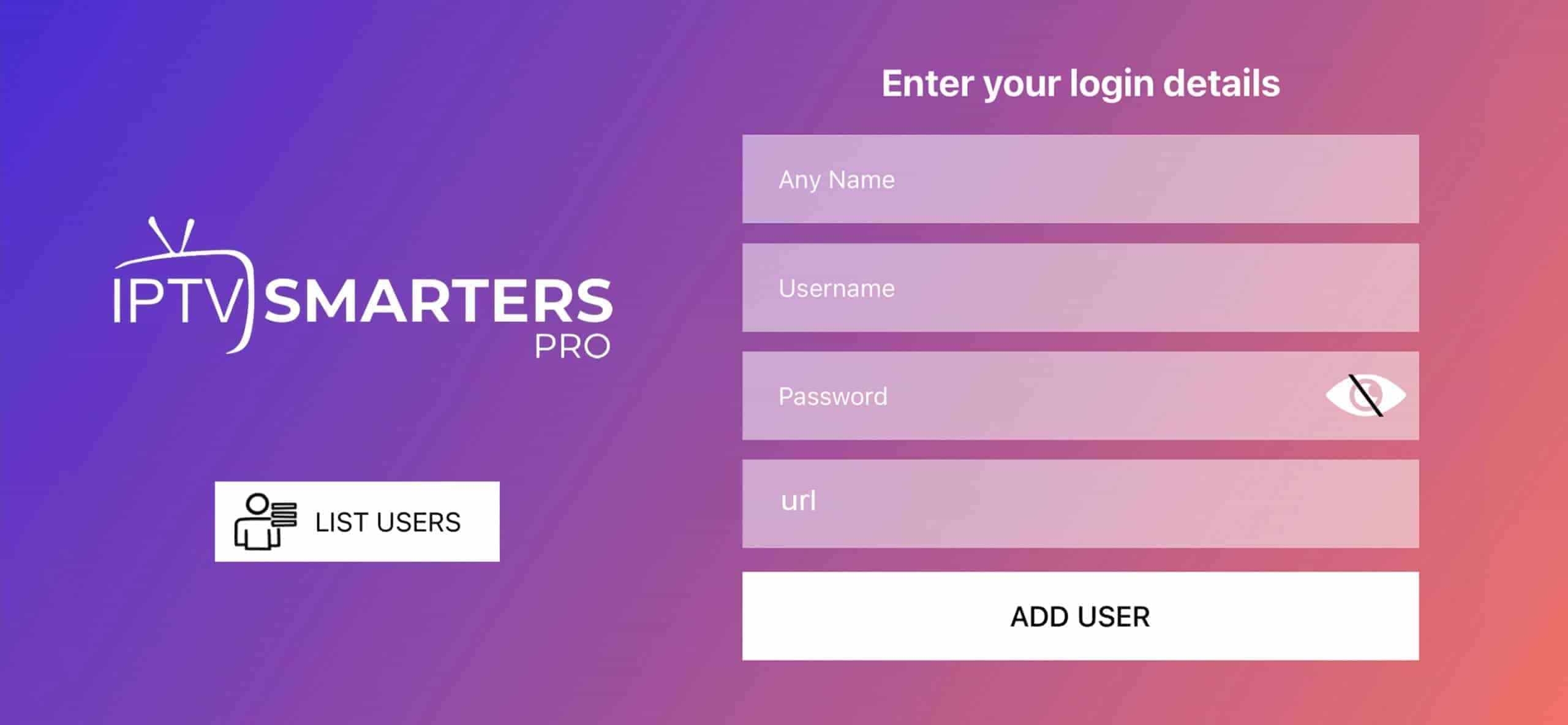
Launch the media player app, select "Login with Xtream Codes API" (strongly recommended) or load M3U Playlist, and fill in your details precisely.

5

Enjoy Live Channels & Movies

Let the app sync your channel list, VOD library, and EPG guide. You're ready to stream crystal-clear HD, FHD, and 4K channels.

Device Matrix

Quick Selection Directory

Click on your specific device below to jump directly to its complete dedicated installation tutorial.

Ready to Start Premium Streaming?

Join thousands of satisfied OURAIPTV users. Gain access to 20,000+ Premium Live Channels, sports networks, and VOD libraries in Ultra HD 4K without buffering.

Interactive Documentation

Complete Device Installation Guides

Meticulously constructed manual step-by-step guides for all systems. Choose your platform to expand details.

System Requirements

Compatible with Amazon Fire TV Stick Lite, Standard, 4K, 4K Max, Fire TV Cube, or Fire TV Smart TVs. Stable high-speed Wi-Fi network (25+ Mbps) recommended.

Step 1: Install Downloader App
  1. On the home screen, select Find and click on the Search bar.
  2. Type Downloader and select it from the search suggestions.
  3. Click Download / Get to install the application.
Step 2: Enable Unknown Sources
  1. Navigate to Firestick Settings (gear icon on far right).
  2. Select My Fire TVDeveloper Options. (If Developer Options is missing, go to Settings → My Fire TV → About, then click your device name 7 times rapidly).
  3. Turn ON Install Unknown Apps specifically for the Downloader app.
Step 3: Download IPTV Player APK
  1. Launch Downloader, enter the numeric code 78235 (or 250931) directly in the URL field, and click Go.
  2. The code will automatically redirect and fetch the official APK file directly (do not enter any website URL, just the numeric code).
  3. Wait for the APK file to download completely, then click Install.
Step 4: Login with Xtream Codes API
  1. Open IPTV Smarters Pro (or alternative player of choice).
  2. Select Login with Xtream Codes API (strongly recommended).
  3. Input Name (e.g., OURAIPTV), Username, Password, and the Server URL provided in your activation email.
  4. Click Add User, wait for content synchronization, and start watching!
💡 Troubleshooting Tip: If the APK fails to download, verify your Firestick storage space (minimum 200MB free) or restart your device.
Requirements

Chromecast with Google TV, Nvidia Shield, Mi Box, TCL, Sony, or Hisense Android TVs. Valid Google Play Store account is active.

Direct Installation via Play Store
  1. Navigate to the **Google Play Store** from your smart TV dashboard.
  2. Click the Search icon and type in IPTV Smarters Pro or XCIPTV Player.
  3. Click Install to download the application directly to your screen interface.
  4. Wait for installation to finish, and click Open.
Configuration and Login
  1. Launch the app. Accept the terms of service.
  2. Select Add Playlist/Load Xtream Codes API.
  3. Precisely type in your Username, Password, and the Server URL.
  4. Press Save/Connect. Let the application parse categories and electronic program guides (EPG).
💡 Pro Tip: If your TV does not have Google Play Store, download Downloader from your utility store and follow the Firestick APK method.
Prerequisites

Samsung Smart TV running Tizen OS. Active internet connection.

Step 1: Install Recommended IPTV Player
  1. Press the Home button on your remote control to open the Samsung Smart Hub.
  2. Search for IPTV Smarters Pro, IBO Player, or Smart IPTV.
  3. Select the application and click Install.
Step 2: Configuration via Web Portal (For IBO/Smart IPTV)
  1. Open the installed app (e.g., IBO Player) and write down the visible MAC Address and Device Key.
  2. Go to the activation portal (e.g., iboplayer.com) on your mobile or PC browser.
  3. Enter your TV's MAC Address and Device Key, then load your OURAIPTV M3U URL or Xtream Codes.
Step 3: Streaming Activation
  1. Restart the IPTV app on your Smart TV.
  2. Your OURAIPTV playlist will load instantly on screen.
💡 Smart TV Note: Smart TVs have limited internal memory. Avoid loading large playlists containing thousands of unwanted VOD content. Use OURAIPTV's portal to filter playlists by category before loading to keep loading fast.
Prerequisites

LG Smart TV running webOS. Active internet connection.

Step 1: Install Recommended IPTV Player
  1. Press the Home button on your LG remote control to open the LG Content Store.
  2. Search for IPTV Smarters Pro, IBO Player, or Nanomid.
  3. Select the application and click Install.
Step 2: Configuration
  1. If using IPTV Smarters Pro: Select "Login with Xtream Codes API" and input your Username, Password, and Server URL directly on-screen.
  2. If using IBO Player: Note the MAC Address and Device Key, visit iboplayer.com on your phone/PC, and upload your M3U playlist URL.
  3. Restart the app on your LG TV to load streams.
💡 Pro Tip: If your LG content store lacks these apps, try changing your LG TV's service location/region settings to "United Kingdom" or "United States" in TV settings.
Requirements

Sony Bravia (Android OS), Hisense (VIDAA or Android OS), or TCL (Roku / Google TV OS). Active network link.

For Android-powered TVs (Sony / TCL)
  1. Search for TiviMate, XCIPTV, or IPTV Smarters in the Google Play Store.
  2. Install, open the app, and type in your Xtream Codes API details.
For VIDAA-powered TVs (Hisense)
  1. Navigate to the VIDAA App Store.
  2. Find and install IBO Player or Smarters Player Lite.
  3. Input the OURAIPTV credentials via the on-screen configuration UI or upload via web.
💡 Connection tip: Connecting your TV with a wired Ethernet LAN cable rather than Wi-Fi guarantees smoother 4K playback.
Roku Platform Limitations

Roku uses a highly restricted proprietary operating system (Roku OS) which actively blocks and excludes direct IPTV player apps from its Channel Store. You cannot sideload APKs.

Option A: Screen Mirroring / AirPlay (Recommended)
  1. Ensure your phone/tablet and Roku are on the same Wi-Fi network.
  2. On Roku, go to Settings → System → Screen Mirroring and set it to Prompt or Always Allow. (For Apple devices, enable **AirPlay**).
  3. Launch your preferred IPTV Player app on your mobile device (e.g., Smarters).
  4. Click the Cast / Mirror icon on your mobile screen and select your Roku device to stream.
Option B: Physical Hardware Bypass (Best Experience)
  1. To stream without relying on your phone, purchase an external media player like an Amazon Firestick or **Chromecast with Google TV**.
  2. Plug it directly into any vacant HDMI port on your Roku TV.
  3. Follow our Firestick / Android TV guide to enjoy native premium IPTV software.
💡 Roku Note: If you find any "IPTV Player" listed directly on the Roku Channel Store, be cautious as Roku regularly deletes unofficial players, which will break your setup.
Requirements

Apple TV 4th Generation, Apple TV HD, or Apple TV 4K. Active Apple ID and App Store access.

Step 1: Install Recommended IPTV Player
  1. Open the App Store on your Apple TV.
  2. Search for Smarters Player Lite, iPlayTV, or GSE Smart IPTV.
  3. Click get to download and install.
Step 2: Configuration
  1. Launch the app on Apple TV.
  2. Select Login with Xtream Codes API.
  3. Input your Name, Username, Password, and the Server URL sent in your OURAIPTV activation email.
  4. Press **Add User / Connect** to synchronize content.
💡 iPlayTV Tip: iPlayTV is a highly recommended premium paid player on Apple TV, featuring a stunning UI and tvOS-integrated EPG program guides.
For Apple iOS (iPhone, iPad)
  1. Launch the Apple App Store.
  2. Search for and download Smarters Player Lite or GSE Smart IPTV.
  3. Open the application, select "Login with Xtream Codes API" and enter your Username, Password, and Server URL.
For Android Devices (Phone, Tablet)
  1. Open Google Play Store.
  2. Install IPTV Smarters Pro or XCIPTV.
  3. Input your credentials, configure your profile, and load.
💡 Cellular Network Tip: When streaming on 4G/5G, adjust player buffer size to 5-10 seconds to prevent buffering caused by cellular speed fluctuations.
System Configuration

Compatible with Windows 10/11 and macOS (Intel & Apple Silicon architectures).

Step 1: Download Player Software
  • Windows: Download the official IPTV Smarters Pro .exe package or install VLC Media Player.
  • macOS: Download IPTV Smarters Pro .dmg or install GSE Smart IPTV from the Mac App Store.
Step 2: Configuration
  1. Launch the installer and complete setup wizard.
  2. Run the app, select Xtream Codes API Login.
  3. Enter your exact OURAIPTV credentials to sync database streams.
💡 VLC Alternative: Open VLC, click Media → Open Network Stream, paste your OURAIPTV M3U Link, and press Play to instantly stream.
Prerequisites

Kodi v19 (Matrix), v20 (Nexus) or newer installed on any platform (PC, Firestick, Android, Xbox).

Step 1: Install PVR Simple Client Plugin
  1. Launch Kodi, go to **Settings (gear icon)** → **Add-ons**.
  2. Select **Install from repository** → **PVR clients**.
  3. Scroll down and select **PVR IPTV Simple Client**, then click **Install**.
  4. Wait for the add-on installed notification to appear.
Step 2: Configure Add-on Settings
  1. Click **PVR IPTV Simple Client** again, and select **Configure**.
  2. Go to the **General** tab. Set Location to **Remote Path (Internet address)**.
  3. Click on **M3U playlist URL** and paste your OURAIPTV M3U URL exactly.
  4. Go to the **EPG Settings** tab. Enter your EPG XML TV URL in the EPG XML URL field.
  5. Click **OK** and restart Kodi to import channels, genres, and guide tables.
💡 Kodi Note: Kodi caches massive playlist databases. If it lags, limit your playlist size by configuring selective groups in OURAIPTV panel.
MAG Hardware Activation

Compatible with Infomir MAG boxes. Locate your unique physical **MAC Address** on the sticker under the box (starts with 00:1A:79:...).

Step 1: Authorize MAC Address
  1. Provide your MAC address to our support team before initializing connection.
  2. Our team will register it within our active portal database instantly.
Step 2: Enter Portal Link
  1. Connect the MAG box to your TV. Go to **Settings → System Settings → Servers → Portals**.
  2. Set **Portal 1 Name** to OURAIPTV.
  3. Set **Portal 1 URL** to the specific MAG server link provided by our support team in your email.
  4. Save, reboot the box, and wait for the portal to load your channels automatically.
💡 Case-Sensitive Warning: MAC addresses are case-sensitive. Verify characters carefully (numbers 0-9 and letters A-F) before registering.
Hardware Requirements

Formuler Box (Z8, Z10, Z11 Pro, etc.) running MyTVOnline 2 or 3, or BuzzTV Box running BuzzTV Portal launcher.

Step 1: Launch Application
  1. Open **MyTVOnline 2 (MOL2)** on your Formuler box.
  2. Click **Add Portal / Edit Portal** to open setup wizard.
Step 2: Register Portal Link
  1. Input Portal Nickname as OURAIPTV.
  2. Enter the **Portal URL** sent in your activation email.
  3. If our system asks for your ID, register your Formuler MAC address (or ID) within the OURAIPTV portal.
  4. Click **Connect** to load the custom visual TV layout.
💡 Formuler Advantage: Formuler offers the single best integrated recording (DVR) and timeshift feature among all IPTV boxes.
Requirements

Dreambox, Vu+, Mut@nt, Zgemma, or similar Linux-based satellite receiver. PC connected to the same local network.

Step 1: Connect via Telnet/SSH
  1. Find your Enigma2 box IP address (Menu → Setup → System → Network → Device Setup → Adapter Settings).
  2. On your PC, open a terminal client like **PuTTY** or terminal terminal.
  3. Connect using SSH / Telnet (Port 23) using your box's IP address and credentials (default is usually user: root, password empty).
Step 2: Execute Auto-Install Command
  1. Retrieve the custom auto-installer command script sent in your OURAIPTV billing email. It looks like:
    wget -O /etc/enigma2/iptv.sh "http://server:port/get.php?auth=script..." && chmod 775 /etc/enigma2/iptv.sh && /etc/enigma2/iptv.sh
  2. Paste the exact command into PuTTY and press **Enter**.
  3. The script will download and arrange bouquet file channels. Type reboot to restart your system.
💡 Enigma2 Note: This script automates EPG mapping and channel group setup, which will update automatically every time you reboot the system.
Streaming on Consoles

Both Microsoft Xbox and Sony PlayStation do not natively support traditional IPTV apps on their stores, but there are excellent workarounds.

For Xbox One, Series S, Series X
  1. Open the **Microsoft Store** on your Xbox.
  2. Search for **IPTV Smarters Pro** or **Kodi** and click install.
  3. Launch the app, select Xtream Codes API login, and input your server link, username, and password.
For PlayStation 4 & PlayStation 5
  1. Open the built-in PlayStation web browser.
  2. Type in our premium OURAIPTV Web Player link (available in your email) directly.
  3. Log in using your Xtream Codes credentials to enjoy direct in-browser streaming without installing any external software.
💡 Pro Tip: For the best PlayStation experience, connect a physical USB keyboard to make typing channel names and navigation quick and easy.
Media Engines

Premium IPTV Player Guide

Learn about the most popular software media engines, their pros and cons, and step-by-step connection settings.

Gold Standard

IPTV Smarters Pro

The most user-friendly, feature-rich app available on iOS, Android, Smart TVs, and PCs. Free to use with optional premium features.

Xtream Codes API Setup:
  • 1: Open app, click Add User.
  • 2: Select Login with Xtream Codes API.
  • 3: Enter your Name, Username, Password, and our Server URL.
  • 4: Hit Add User.
Best UI

TiviMate IPTV Companion

Designed strictly for Android TV, Fire TV, and Shield devices. Offers a seamless, premium Cable TV-like layout with an interactive program guide.

Configuration Steps:
  • 1: Click Add Playlist.
  • 2: Select Xtream Codes.
  • 3: Enter Server URL, Username, and Password.
  • 4: Turn on EPG synchronization.
Ultra Stable

XCIPTV Player

A reliable player with a sleek dashboard layout featuring dynamic movie posters and direct live-channel categories. Low resource usage.

Quick Login:
  • 1: Enter Server URL on top line.
  • 2: Input Username in second box.
  • 3: Input Password in third box.
  • 4: Click Sign In.
Best for TV

IBO Player

The leading playlist controller for modern Samsung and LG Smart TVs. Clean video decoding architecture for high-resolution 4K streams.

Web Activation:
  • 1: Note the MAC Address and Device Key.
  • 2: Visit iboplayer.com.
  • 3: Click Add Playlist, input MAC, Key, and M3U playlist.
  • 4: Reload the app on your TV.
Modern

Sparkle TV

Next-gen IPTV player with an emphasis on rich EPG designs, timeshift, search tools, DVR recording capabilities, and smooth transitions.

Setup Checklist:
  • 1: Go to Settings → Sources → Setup.
  • 2: Select Xtream Codes.
  • 3: Enter credentials and configure.
Lightweight

Perfect Player

An excellent lightweight solution for older Android tablets or devices with limited RAM. Features advanced backup systems and video scale adjustments.

Setup Checklist:
  • 1: Go to Settings → General.
  • 2: Paste M3U URL or select playlist file.
  • 3: Wait for loading.

No More Buffering, No More Limits

Get instant access to over 20,000 Live Channels, 80,000+ Movies, TV Shows, and all pay-per-view (PPV) sports events. Supported on all hardware platforms.

Technical Helpdesk

Troubleshooting & Error Guide

Having issues with your setup? Read these direct fixes for the most common errors experienced on IPTV engines.

🔄

Buffering & Lagging

Cause: High-bandwidth data congestion, dynamic ISP throttling, or low router signal range.
Solution: Restart your router, connect via Ethernet LAN, or activate a premium VPN (like ExpressVPN/NordVPN) to bypass ISP throttling limits.

📺

Black Screen (Audio Only)

Cause: Video stream codec incompatibility or outdated hardware decoding configurations.
Solution: Open IPTV Smarters Settings → Player Settings, change Hardware Decoder to Software Decoder, or switch from MPEG-TS to HLS video format.

Playlist Not Loading

Cause: Typo in registration data, expired trial, or active server maintenance.
Solution: Double-check for missing letters, check your subscription status in OURAIPTV client portal, or consult customer service.

🔑

Wrong Username/Password

Cause: Input casing error, copy-paste format spacing error, or expired credentials.
Solution: Manually type details rather than copy-pasting to prevent copying hidden trailing spaces. Verify capital/lowercase letters.

🌐

Server URL Error

Cause: Omitted port numbers, or incorrect server address format.
Solution: Verify that the Server URL contains the exact port syntax (e.g., :8080 or :25461) and match http:// protocols correctly.

🚫

No Channels Visible

Cause: Outdated app database, or selective category customization.
Solution: Press the Refresh/Reload button in the app home menu to pull the latest channel map from the server.

📅

No EPG (Program Guide)

Cause: Missing EPG path variable or unsynced device time.
Solution: Clear App Cache, select "Refresh EPG" in Settings, or manually input our XML TV URL source in the EPG configuration.

Slow Loading Speeds

Cause: Massive playlist database bloating device memory.
Solution: Request OURAIPTV support to trim down your playlist to show only your preferred country packages.

💥

App Crashes Repeatedly

Cause: Corrupted storage cache or incompatible app version build.
Solution: Go to TV Settings → Apps → IPTV Smarters, select "Clear Cache" and "Clear Data". Reinstall the latest APK if necessary.

🔊

Audio out of Sync

Cause: Variable bitrate decoding lags on low-end hardware.
Solution: Set your player's audio delay offset to +/- 500ms, or use an external media player engine (such as VLC/MX Player) inside settings.

⚠️

Video Frame Drops

Cause: High frame rate 60FPS sports channels overloading GPU rendering capacity.
Solution: Change video resolution output settings, or enable active hardware acceleration within app configurations.

📶

ISP Connectivity Blocks

Cause: Local internet provider security firewalls or filters blocking IPTV server ports.
Solution: Disable "Web Safe" / "Parental Shields" in your ISP account dashboard, or run a premium VPN server bypass.

Knowledgebase

Frequently Asked Questions

Comprehensive responses to standard questions. Expand each section to view professional guides.

OURAIPTV is a premium IPTV provider that delivers high-definition Live TV, Video on Demand (VOD) series, and sports broadcasting directly to your smart devices over an active internet connection, removing the need for cable packages or dish hardware.

Simply navigate to our plans page, select your package, complete the checkout, and you will receive your login details via email within 5 minutes of verification.

Xtream Codes is a secure, server-driven database format. It uses three key fields (Server URL, Username, and Password) to link your player app to our streaming servers. It is the most robust and fastest connection method, offering auto-updating channel maps and quick load times.

An M3U Playlist is a file format or a raw URL containing a list of video streams. While popular for older apps, we always recommend the Xtream Codes API method because M3Us require full redownloading on every app startup, which takes longer.

Activation is instant and automated. Once payment is processed, our system provisions your streaming line and dispatches your credentials to your email address within 2-10 minutes.

Yes. You can install your playlist on as many devices as you like. However, the number of devices that can stream simultaneously depends on your package plan (1 connection, 2 connections, or more). Streaming on more devices than permitted will result in a connection drop.

A VPN is not strictly required. However, it is highly recommended if your internet service provider (ISP) restricts or throttles video streaming data during high-traffic events, like major live sports matches. A VPN encrypts your traffic, bypassing ISP filters.

To resolve buffering: 1) Run an internet speed test (minimum 25 Mbps is required for 4K). 2) Connect your TV box via wired Ethernet LAN instead of Wi-Fi. 3) Restart your router and streaming device. 4) Switch to software decoding in player settings.

Go to your player settings and clear the local database cache. Next, select "Update EPG" to force-pull a fresh database from our server. Ensure your device's date and time settings are set to auto-sync.

On Smart TVs, open the app store and click update. On Firestick, launch the Downloader app, search the official download URL, and install the new APK over your existing version. Your settings will be preserved.

Absolutely. We use 256-bit SSL encrypted pathways and partner with premium credit processors to guarantee safety. We never store credit card records on our systems.

Our library contains over 20,000 premium channels from the US, UK, Canada, Europe, South America, and Asia. This includes premium sports, news, entertainment, children's channels, and movie networks.

Yes. We offer all major sports networks, live pay-per-view (PPV) events, Champions League, Premier League, NBA, NFL, UFC, and Formula 1 races, complete with dedicated backup server links.

Yes, all premium channels and VODs are structured in HD, Full HD 1080p, and Ultra HD 4K formats. Our server engines adjust video delivery in real time to match your bandwidth speeds.

We recommend a minimum speed of 15 Mbps for standard HD channels, 25 Mbps for Full HD 1080p, and 50+ Mbps for ultra-smooth UHD 4K streaming without buffering.

We offer low-cost trial plans which grant full system access to verify channel maps, server ping times, and playback stability before purchasing long-term plans.

Log into your personal OURAIPTV Client Portal. Navigate to "Services & Billing" and select "Renew Package" or update your payment profiles easily.

Launch your player app (such as IPTV Smarters). Open Settings → Parental Control. Establish a secure 4-digit PIN to lock selected categories or adult content folders.

Yes, we have a dedicated customer support team available 24 hours a day, 7 days a week via active Live Chat and support ticketing inside your billing portal.

We provide a 100% money-back guarantee. If we are unable to resolve any system incompatibility or technical streaming errors, we will process a full refund within 7 days.

Unlock Premium Global Television Today

Instant activation. Risk-free trial. 24/7 client care. Start your high-definition journey with OURAIPTV.