
Why Is My IPTV Not Working? Causes and Fixes (2026 Guide)
Settling down to watch live sports or your favorite show only to be met with a frozen screen, lagging video, or an error code can be frustrating. If you are asking yourself, “Why Is My IPTV Not Working?”, you are far from alone. Many cord-cutters across the USA encounter stream failures from time to time. Fortunately, most IPTV connection issues stem from local configuration errors, network bottlenecks, or device memory limits. This technical 2026 IPTV troubleshooting guide explains how to identify stream bottlenecks, reduce buffering, eliminate black screens, address potential ISP throttling, and restore your live TV playback.
📌 Key Takeaways: Technical IPTV Troubleshooting
- Restart Equipment First: Power-cycling your streaming device (Firestick/Smart TV) and internet router for 60 seconds clears volatile RAM and resets temporary network leases.
- Address Traffic Management: Some Internet Service Providers may shape or manage heavy video traffic during peak evening hours (7 PM – 11 PM). Using an encrypted VPN with WireGuard protocol can help maintain steady speeds.
- Bypass Local DNS Restrictions: Changing your router or streaming device DNS settings to Google Public DNS (
8.8.8.8/8.8.4.4) or Cloudflare (1.1.1.1) resolves hostname lookup delays. - Use Wired Connections When Possible: Ethernet cables or 5 GHz Wi-Fi bands reduce packet loss compared to crowded 2.4 GHz frequencies.
- Maintain Device Resources: Clearing app cache regularly and keeping at least 1.5 GB of free storage prevents media player decoders from crashing.
- Select Infrastructure-Backed Providers: Persistent server downtime often indicates undersized server architecture. Choosing a provider like OURAIPTV offers load-balanced servers designed for reliable streaming.
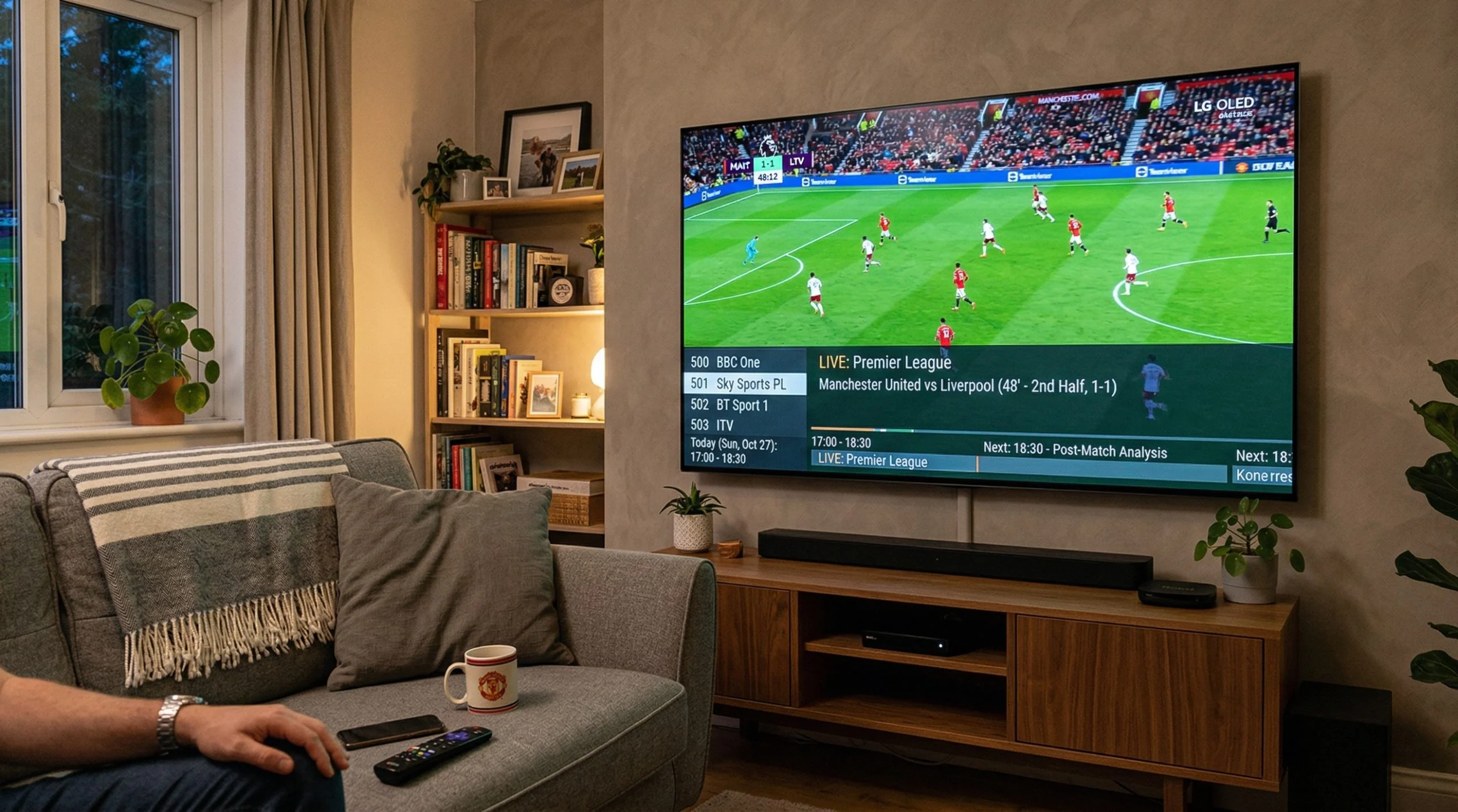
Top 10 Quick Answer Fixes (Featured Snippets)
Need a fast answer? Here are direct technical solutions to the 10 most common IPTV queries in 2026:
To perform a complete IPTV power cycle: 1) Force close your IPTV app on Firestick, Android TV, or Smart TV. 2) Clear the app cache in system settings. 3) Unplug your streaming device and router from power for 60 seconds to purge lingering RAM cache and DNS leases. 4) Power up the router first until internet connectivity establishes, then turn on your device and launch the app.
IPTV buffering occurs when the media player’s buffer empties faster than incoming network packets arrive. Common factors include: 1) Local connection speeds dropping below 25 Mbps, 2) ISP traffic shaping during peak evening usage, 3) Wireless packet loss over 2.4 GHz Wi-Fi, or 4) Host server bandwidth congestion. Switching to an Ethernet connection, using a VPN, and clearing app cache often improves playback stability.
IPTV freezing happens when packet delivery stalls, forcing the video decoder to hold the last valid keyframe. This can stem from memory leaks on low-RAM streaming sticks, wireless interference, or server strain during high-demand events. Helpful steps include restarting your streaming hardware, using a wired Ethernet connection, or switching playlist formats from MPEG-TS to HLS (.m3u8).
When channels fail to load, potential causes include: 1) Host server maintenance, 2) An expired subscription, 3) ISP DNS filtering blocking the server domain, or 4) Incorrect authentication details. Testing your playlist over mobile data helps isolate the issue; if channels stream over cellular data but fail on home Wi-Fi, your ISP or local DNS settings may be restricting access.
A black screen with active audio typically points to a video decoding mismatch, where your hardware fails to render the incoming stream codec. If both audio and video are absent, it may indicate a DNS routing block or inactive feed. You can address this by switching the app’s decoder settings from Hardware (HW) to Software (SW), configuring Google DNS (8.8.8.8), or connecting through a VPN.
Playback errors (such as Error 404 or Unrecognized Media Format) indicate that your application cannot parse the server URL or media container. Fixes include choosing “Refresh Playlist & EPG” within your app settings, selecting an external player like VLC with broader codec support, or updating your IPTV application to the latest version.
IPTV apps on Firestick may crash or stutter when system RAM or internal flash storage becomes depleted. In Firestick settings under Applications > Manage Installed Applications, selecting your IPTV player and clicking Clear Cache frees temporary memory. Keeping at least 1.5 GB of internal storage available helps ensure smooth operation.
Nighttime buffering often corresponds with peak internet usage hours (typically 7:00 PM to 11:00 PM), when local neighborhood node congestion increases or some ISPs manage high-volume video traffic. Connecting through a high-speed VPN encrypts stream data, preventing automated traffic management from affecting your link speed.
To reduce ISP domain blocking or traffic shaping: 1) Enable a VPN utilizing fast protocols like WireGuard, 2) Update your router DNS to public resolvers such as Google DNS (8.8.8.8 / 8.8.4.4) or Cloudflare (1.1.1.1), and 3) Disable automated security filters in your ISP gateway app that may misclassify streaming servers.
Login failures generally result from case-sensitive entry mistakes in your Xtream Codes API credentials, exceeding your plan’s permitted concurrent streams, or a MAC address registration error. Verify letter casing carefully, ensure no secondary device is actively streaming on your account, and double-check your registered MAC address formatting.
Why Is My IPTV Not Working?
Unlike traditional cable television delivered over dedicated coaxial lines or satellite feeds, IPTV (Internet Protocol Television) delivers real-time media streams as data packets across open IP networks. Because this architecture relies on continuous end-to-end data delivery, an interruption anywhere along the network path can affect video playback.
When investigating why IPTV is not loading channels or experiencing playback drops, the root cause usually falls into one of four technical areas:
- Local Home Network Bottlenecks: Wi-Fi frequency interference, high latency (ping), or inadequate bandwidth on your local network.
- ISP Network Management: Certain internet service providers may prioritize or manage network traffic during high-demand hours, which can impact continuous UDP/RTP stream packets.
- Device Resource Constraints: Accumulated app cache, low device RAM, or hardware decoder limitations on streaming devices like Amazon Firestick, Google TV, or Smart TVs.
- Server Capacity Limits: Host server congestion during popular broadcasts when provider infrastructure lacks adequate dynamic load balancing.
Choosing a Reliable IPTV service built on load-balanced server infrastructure offers a dependable option for reducing playback issues.
The Most Common IPTV Problems
Recognizing the technical symptoms of your stream issue helps speed up IPTV troubleshooting. Below are core network and device benchmarks required for smooth video playback:
Recommended minimum speed for 4K streaming
Recommended for multiple simultaneous 4K streams
Wi-Fi band performing better than 2.4 GHz over short distances
Provides the most stable connection for streaming
Whether your issue involves IPTV buffering at night, IPTV playback failed errors, or an IPTV app crashing on launch, the systematic fixes outlined below will help identify and resolve the cause.
Internet Connection Issues & Throttling
A stable network connection is vital for any IPTV Subscription. While standard speed tests measure burst bandwidth, continuous video streaming requires low packet loss and consistent throughput to prevent IPTV slow streaming.
1. Potential ISP Traffic Management
If your stream functions normally during the day but experiences buffering between 7:00 PM and 11:00 PM, your connection may be affected by peak-hour network congestion. During these windows, some internet service providers manage continuous high-bandwidth video traffic to maintain overall network stability.
The Fix: Connecting through a Virtual Private Network (VPN) encrypts your data packets via AES-256 or ChaCha20 protocols. Because your network traffic is encrypted, ISP automated traffic rules cannot inspect the payload, helping maintain steady streaming speeds.
2. Wi-Fi Interference vs. Wired Connections
Streaming high-bitrate HD or 4K media over a 2.4 GHz Wi-Fi connection leaves streams vulnerable to RF interference from nearby electronics and wall obstacles, leading to micro-packet drops and IPTV connection issues.
The Fix: Connect your device using a 5 GHz Wi-Fi network for higher throughput over shorter distances, or use a Cat6 Ethernet cable for a direct, low-latency connection.
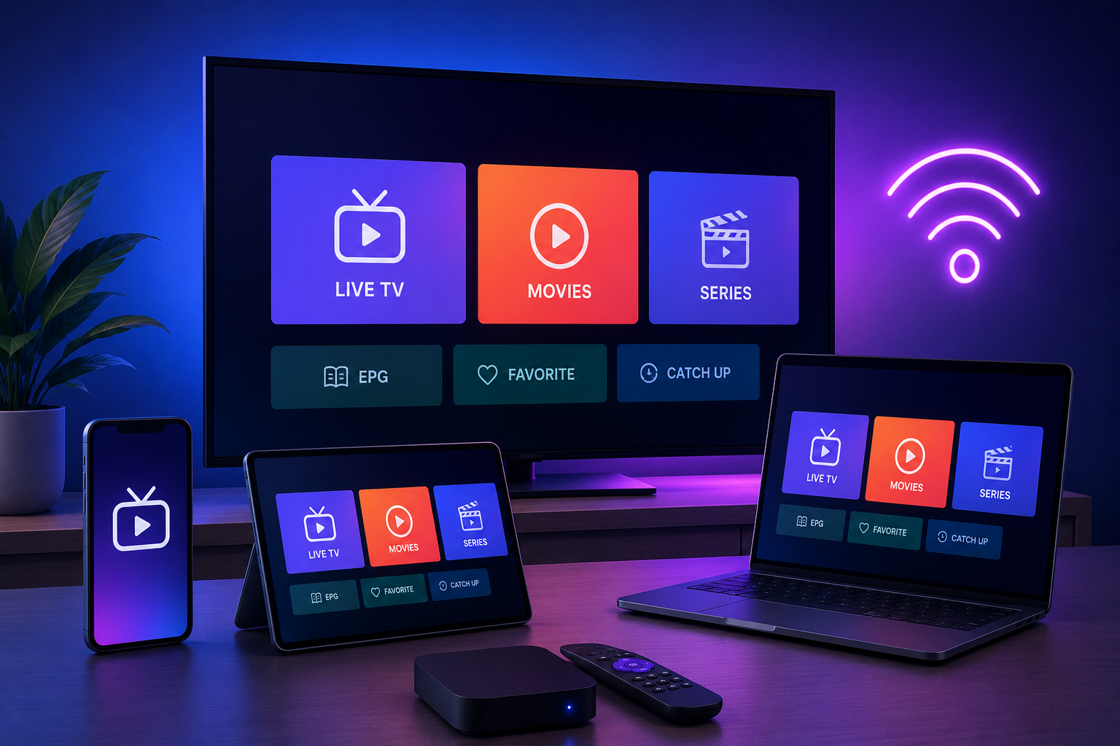
IPTV Buffering & Slow Streaming
When incoming stream data arrives slower than the media decoder consumes it, the player pauses playback to refill its buffer. To reduce buffering:
- Change Video Player Decoder: Within apps like IPTV Smarters Pro, Tivimate, or XCIPTV, navigate to Settings > Media Player and switch decoding mode between Hardware (HW), Hardware+ (HW+), or Software (SW) to find the best match for your processor.
- Increase Buffer Size: Adjust the buffer size setting in your app options from 0 seconds to 5-10 seconds. A larger buffer absorbs minor network jitter without interrupting playback.
- Select an Optimal Stream Feed: If your network is experiencing temporary congestion, switching from a 4K feed to a standard HD (1080p) stream lowers the required bitrate.
If you prefer a setup designed for reliable performance, switching to a provider like OURAIPTV offers load-balanced servers optimized for stable performance during high-traffic broadcasts.
IPTV Keeps Freezing
Unlike buffering (where a loading wheel appears), freezing occurs when video rendering halts entirely while audio may continue. This usually signals video frame loss. To address freezing:
- Switch Playlist Protocols: In your app settings, change the output stream protocol from MPEG-TS (.ts) to HLS (.m3u8). HLS chunks media into small HTTP segments, which handle minor packet drops more gracefully than continuous TS feeds.
- Close Unused Applications: Running background apps on devices with limited RAM (such as standard streaming sticks) deprives the video decoder of memory, causing frame drops.
- Reboot Your Streaming Hardware: Restarting your device clears volatile memory cache and resets background OS processes.
Black Screen & No Signal Problems
Addressing an IPTV black screen fix scenario involves identifying whether the issue lies in video decoding, network routing, or display handshakes:
- Audio Plays, Video Screen is Black: The audio codec is rendering correctly, but the video decoder cannot parse the stream profile. Switch your app decoder from HW to SW (Software Rendering).
- No Audio, Black Screen: The media link may be temporarily offline or restricted by local DNS rules. Toggle a VPN on to check if network routing resolves the issue.
- HDMI Connection Handshake: If using a streaming box, disconnect the HDMI cable, check for pin damage, and securely reconnect it to your TV port to ensure proper HDCP handshakes.
Playback Errors & Failed Streams
Messages such as “IPTV Playback Failed”, “Error Code 404”, or “Unrecognized Media Format” mean your app media engine cannot decode the stream container sent by the server.
To fix IPTV playback error messages effectively:
- Refresh Playlist Data: Select Refresh Playlist and Refresh EPG in your player settings to ensure your client has updated stream directory URLs.
- Utilize an External Player Engine: Install VLC Player or MX Player from your app store. In your IPTV player settings, select “Use External Player” to leverage VLC’s extensive codec library.
- Keep Applications Updated: Ensure your player app is updated to support modern video compression profiles such as H.265 (HEVC).
Login & Authorization Problems
When experiencing IPTV login problems such as “Invalid Credentials” or “Authorization Failed”, check these setup details:
- Verify Exact Credentials: Xtream Codes API server URLs, usernames, and passwords are strictly case-sensitive. Check for character confusion between uppercase “I”, lowercase “l”, and number “1”.
- Check Allowed Active Connections: Most accounts permit a specific number of concurrent streams. If an active session is running on another device in your home, opening a new stream will return an authorization error.
- Verify MAC Registration: For MAG boxes or STB apps, ensure your device physical MAC address (e.g.,
00:1A:79:XX:XX:XX) matches your account settings exactly.
Server Down & Provider Outages
To verify if a stream issue is caused by a server outage or a local network setting:
- Perform a Cellular Network Test: Turn off Wi-Fi on your mobile phone, open your IPTV app using 4G/5G mobile data, and check playback. If streams function on mobile data but fail on Wi-Fi, the issue likely resides with your home ISP or router configuration.
- Check Support Portals: Established services provide status updates via member portals or support groups regarding scheduled server maintenance.
If you experience frequent server downtime during major events, switching to a provider like OURAIPTV offers load-balanced infrastructure built to reduce interruptions.
Device Compatibility & App Fixes
Hardware platforms process video decoders and network requests differently. Here is how to optimize playback across common systems:
How to Fix IPTV on Firestick
Amazon Firestick devices are widely used, but limited flash memory can impact app stability. If IPTV is not working on Firestick:
- Navigate to Settings > Applications > Manage Installed Applications > [Your App].
- Select Clear Cache to free temporary files without deleting your login settings.
- Uninstall unused streaming apps to maintain at least 1.5 GB of free internal space.
For additional configuration instructions, review our detailed IPTV Installation Guide.
How to Fix IPTV on Android TV & Google TV
Devices like Chromecast with Google TV or Nvidia Shield offer strong processing power. If app stuttering occurs:
- Check the Google Play Store to install pending app or Android OS updates.
- Enable “Match Frame Rate (AFR)” in your player settings to align video output with your display’s refresh rate.
Apple TV (tvOS) Setup Tweaks
For tvOS applications like GSE Smart IPTV or iPlayTV, ensure background data processing is enabled under Settings > General > Background App Refresh.
Samsung & LG Smart TV Fixes
Smart TVs operating on Samsung Tizen or LG WebOS have dedicated system resources. If IPTV is not working on Smart TV:
- Power-cycle your Smart TV by unplugging it from the wall for 60 seconds to clear system RAM.
- Use lightweight, optimized applications such as IBORPlayer or Smartone IPTV.
Windows & Mac PC Adjustments
When using desktop players like VLC or IPTV Smarters on PC or Mac, ensure your GPU display drivers are up to date to support hardware-accelerated decoding.
Router Settings & Firewall Restrictions
Your local router firewall or firmware settings may inadvertently filter video stream packets. Recommended adjustments include:
- Disable SIP ALG: Access your router management console (typically
192.168.1.1) and toggle off SIP ALG (Application Layer Gateway), which can modify stream header data. - Adjust ISP Security Filters: Network features like Comcast Xfinity Advanced Security or AT&T ActiveArmor may occasionally flag streaming server IPs. Temporarily adjusting these settings in your provider’s app helps test connectivity.
DNS Problems & Resolver Tweaks
Your Internet Service Provider’s default Domain Name System (DNS) server converts web domains into IP addresses. In some cases, default ISP DNS resolvers may experience routing delays or domain filtering.
The Solution: Switch to Public DNS Resolvers
Updating your router or streaming device network settings to public DNS providers improves lookup speeds:
- Google Public DNS: Primary
8.8.8.8| Secondary8.8.4.4 - Cloudflare DNS: Primary
1.1.1.1| Secondary1.0.0.1
VPN Issues & Encryption Blocks
While a VPN can help prevent ISP traffic shaping, improper VPN settings can introduce latency:
- Choose Nearby Servers: Connecting to distant international VPN servers increases ping time. Select the nearest server location within your country for optimal routing.
- Use Efficient Protocols: In your VPN app settings, select WireGuard or IKEv2 over older TCP protocols to maximize data throughput.
How to Improve IPTV Performance
To support consistent video streaming performance, consider these practical steps:
- Use a direct Cat6 Ethernet connection rather than wireless Wi-Fi.
- Choose established IPTV player apps offering customizable buffer controls.
- Set custom DNS resolvers (such as 8.8.8.8) on your local network.
- Maintain at least 1.5 GB to 2.0 GB of available internal storage on your device.
- Use an encrypted VPN protocol if your local connection experiences evening slowdowns.
- Select a service built on optimized architecture like OURAIPTV.
Internet Speed Recommendations
Having sufficient bandwidth is important for continuous video streaming. The speeds below reflect dedicated throughput needed at the streaming device:
| Stream Resolution | Minimum Speed per Device | Recommended ISP Plan |
|---|---|---|
| Standard Definition (480p) | 5 Mbps | 25 Mbps |
| High Definition (720p / 1080p) | 12 Mbps | 50 Mbps |
| Full HD 60FPS (Sports) | 20 Mbps | 100 Mbps |
| 4K Ultra HD (2160p) | 35 Mbps | 200+ Mbps |
For more details on sports streaming configurations, see our guide on How to Watch Live Sports Without Cable in the USA or read How to Watch Movies and TV Shows on IPTV in the USA.
When to Contact Your IPTV Provider
If you have restarted your hardware, checked local internet speeds, updated DNS resolvers, and tested over a VPN but your IPTV is still not working, contacting provider support is the appropriate next step.
Providing the following information helps support teams diagnose your ticket quickly:
- Your registered account username or MAC address.
- The precise error code displayed by your media player.
- Specific channel channels or media titles affected.
- Results from testing over mobile cellular data vs home Wi-Fi.
How to Prevent IPTV Problems
Regular maintenance helps keep your streaming environment stable:
- Periodic Equipment Reboots: Rebooting your router and streaming box weekly clears memory leaks and clears temporary system logs.
- Manage Application Cache: Clear application cache periodically to prevent database fragmentation.
- Use Established Services: Select a service designed for reliable streaming backed by robust server capacity.
Troubleshooting Comparison Tables
Common IPTV Problems vs Solutions
| Symptom | Primary Cause | Quick Fix |
|---|---|---|
| Continuous Buffering | Traffic Management / Wi-Fi Interference | Switch to Ethernet & Enable VPN |
| Video Freezes / Audio Plays | Hardware Decoder Mismatch | Change App Media Player to SW Mode |
| Black Screen (No Picture) | DNS Routing / Cache Fragmentation | Update DNS to 8.8.8.8 & Clear App Cache |
| Authorization Failed Error | Credential Typo / Concurrency Limit | Verify Case-Sensitive Password & Active Devices |
| App Keeps Crashing | Low Storage / RAM Exhaustion | Force Stop App, Clear Cache, Reboot Device |
Device Troubleshooting Quick Guide
| Device | Top Issue | Recommended Action |
|---|---|---|
| Amazon Firestick | Low Storage & RAM Limits | Clear app cache; maintain 1.5GB free space |
| Android TV / Google TV | Refresh Rate Stuttering | Enable Match Frame Rate (AFR) in app options |
| Samsung / LG Smart TV | App Memory Allocation | Unplug TV for 60s; use lightweight IPTV players |
| Apple TV (tvOS) | Background Processing Stopped | Enable Background App Refresh in tvOS settings |
Frequently Asked Questions
Why is my IPTV buffering all of a sudden?
Sudden buffering can be caused by peak-hour network usage, local Wi-Fi interference, or temporary server load during live broadcasts. Connecting over an Ethernet cable, clearing app cache, or using a fast VPN can help stabilize your connection.
Why is IPTV not working on Firestick after an update?
System updates may occasionally alter background app permissions or reset cache files. To resolve this, restart your Firestick, clear the IPTV player cache under Settings > Applications, or reinstall the application.
How do I stop my ISP from blocking IPTV?
Connecting through an encrypted VPN protocol (such as WireGuard) and updating your router DNS settings to public resolvers like Google DNS (8.8.8.8) helps bypass common domain restrictions and traffic shaping.
Do I need a VPN for IPTV streaming in the USA?
While not mandatory for every setup, using a VPN in the USA can be beneficial. It encrypts your stream traffic to prevent potential ISP traffic management during peak network hours while enhancing data privacy.
Why are some IPTV channels working while others show a black screen?
If specific channels show a black screen while others function, the individual channel stream may be undergoing maintenance, or it may use a video format requiring a decoder change from Hardware (HW) to Software (SW) mode.
What is the difference between MPEG-TS and HLS stream formats?
MPEG-TS (.ts) streams raw video packets suitable for low-latency live events, but can be sensitive to packet drops. HLS (.m3u8) delivers media in segmented HTTP chunks, providing better resilience against minor network fluctuations.
Why does IPTV slow down at night?
Evening slowdowns often correspond with peak internet usage hours between 7 PM and 11 PM, when local network node activity increases. Encrypting your traffic with a VPN helps ensure your connection speed remains consistent.
Can a weak HDMI cable cause IPTV playback errors?
Yes. Damaged or older HDMI cables can disrupt HDCP display handshakes, resulting in periodic black screens, audio drops, or display flickering even when the streaming service is operating normally.
How much free storage do I need on Firestick for IPTV?
Maintaining at least 1.5 GB to 2.0 GB of available internal storage is recommended. IPTV players utilize local storage to store buffer data and cache Program Guide (EPG) schedules.
What should I do if my IPTV app keeps closing automatically?
If an app crashes repeatedly, force stop the application in device settings, clear its cache, check available device RAM, and restart your streaming device before re-opening the player.
Final Thoughts
Troubleshooting IPTV involves a systematic process of elimination. By verifying your network connection, clearing app cache, using wired Ethernet where feasible, addressing potential ISP traffic management with a VPN, and updating DNS resolvers, most common streaming issues can be resolved quickly.
If your current setup experiences persistent downtime due to undersized server infrastructure, upgrading to a well-optimized service helps ensure reliable long-term viewing.
At OURAIPTV, we design our infrastructure for dependable performance. With 4K streaming support, load-balanced server technology, and broad compatibility for Firestick, Android TV, and Smart TVs, we provide a stable entertainment experience for viewers across the USA.
Ready for Reliable IPTV Streaming?
Enjoy clear 4K live sports, movies, and series with minimal buffering. Learn how a well-optimized IPTV setup can improve your viewing experience. Discover how OURAIPTV offers dependable, high-speed entertainment for your home.