
IPTV Firestick USA: How to Install, Setup, & Watch Live TV in 2026
Yes! You can easily install and stream IPTV on any Amazon Fire TV Stick in the USA. Because Firestick runs on Fire OS (an Android-based operating system), it supports high-performance IPTV player applications such as TiviMate, IPTV Smarters Pro, and XCIPTV. By connecting an IPTV player app to your provider’s M3U playlist link or Xtream Codes API credentials, you can stream live television channels, sports broadcasts, and on-demand movies directly to your TV.
📌 Key Takeaways for USA Streamers
- Easy Installation: IPTV player apps can be installed directly from the Amazon Appstore or sideloaded using the free Downloader app in under 5 minutes.
- Internet Speed Requirements: Smooth HD streaming requires at least 25 Mbps, while crystal-clear 4K UHD streaming requires 50+ Mbps with 5 GHz Wi-Fi or an Ethernet connection.
- Best IPTV Apps: TiviMate IPTV Player offers the best cable-like Electronic Program Guide (EPG) interface, while IPTV Smarters Pro offers seamless multi-platform login.
- Buffering Fixes: Clearing Firestick cache, switching video decoders (Hardware to Software), and using custom DNS servers (Google `8.8.8.8`) resolves over 90% of streaming playback issues.
Table of Contents
- 1What You Need Before Setting Up IPTV on Firestick→
- 2Step-by-Step Installation Guide (With Screenshots)→
- 3Top 5 Best IPTV Player Apps for Firestick in 2026→
- 4How to Configure Electronic Program Guide (EPG)→
- 510 Proven Solutions to Fix IPTV Buffering & Freezing→
- 6Is IPTV Legal to Use on Firestick in the USA?→
- 7Frequently Asked Questions (FAQ)→
Cord-cutting has transformed television entertainment across the United States. Millions of American households are replacing traditional cable subscriptions—which often cost upwards of $120 to $180 per month—with internet protocol television (IPTV). If you are new to streaming technology, take a moment to explore our comprehensive guide on what IPTV is and how it works to understand how digital packet delivery compares to coaxial cable networks.
The Amazon Fire TV Stick has become the most popular streaming device in North America due to its powerful quad-core processor, affordable price tag, and open Android ecosystem. In this ultimate 2026 setup guide, we will walk you step-by-step through installing IPTV on Firestick, evaluating the top IPTV player apps, configuring electronic TV guides, fixing buffering issues, and ensuring secure playback.
What You Need Before Setting Up IPTV on Firestick
Before starting the installation process, ensure you have gathered the essential hardware and software components. Having these items ready ensures a smooth setup experience without unexpected interruptions.
- Amazon Fire TV Device: Any model works, including the Fire TV Stick Lite, Fire TV Stick 4K, Fire TV Stick 4K Max (2nd Gen), or Fire TV Cube. The 4K Max and Cube models provide faster navigation and extra RAM for heavy EPG guides.
- High-Speed Internet Connection: A reliable home broadband connection. We recommend a minimum of 25 Mbps download speed for 1080p HD channels and 50 Mbps or higher for 4K UHD sports streams.
- IPTV Player Application: Dedicated software to load and parse channel streams (e.g., TiviMate, IPTV Smarters Pro, XCIPTV, or GSE Smart IPTV).
- IPTV Subscription Credentials: An active M3U playlist URL or Xtream Codes API login (Server URL, Username, and Password) provided by your subscription service.
Step-by-Step Installation Guide (With Screenshots)
Installing an IPTV player on Firestick is simple and takes less than 5 minutes. Below are the two primary methods: downloading directly from the official Amazon Appstore or sideloading via the Downloader app.
Method 1: Direct Installation from the Amazon Appstore
Most popular IPTV apps, including IPTV Smarters Pro and select player utilities, are available directly on the official Fire TV Appstore. Follow these steps:
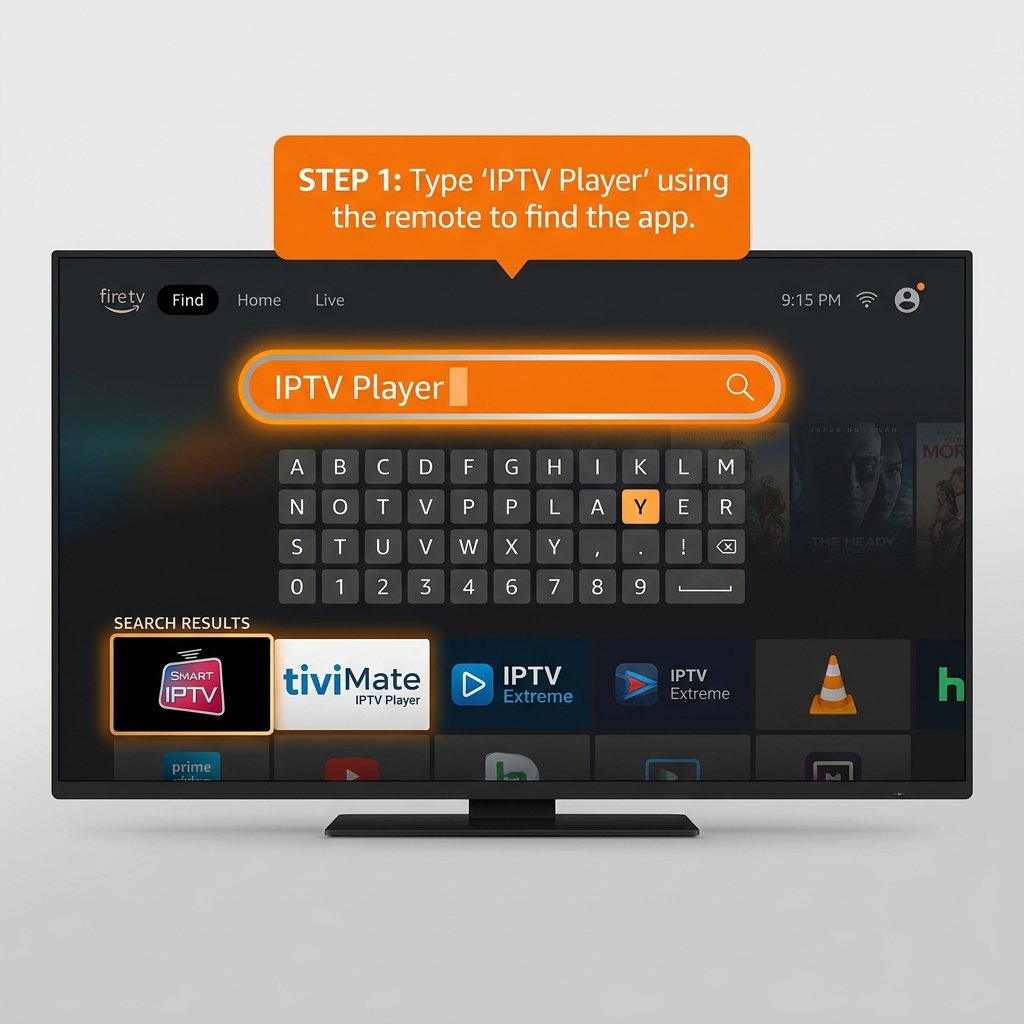
Turn on your Fire TV Stick and navigate to the Find / Search icon located on the center navigation bar of the home screen. Type in the exact name of your preferred IPTV app (such as IPTV Smarters or TiviMate) using the on-screen keyboard or Alexa voice remote.
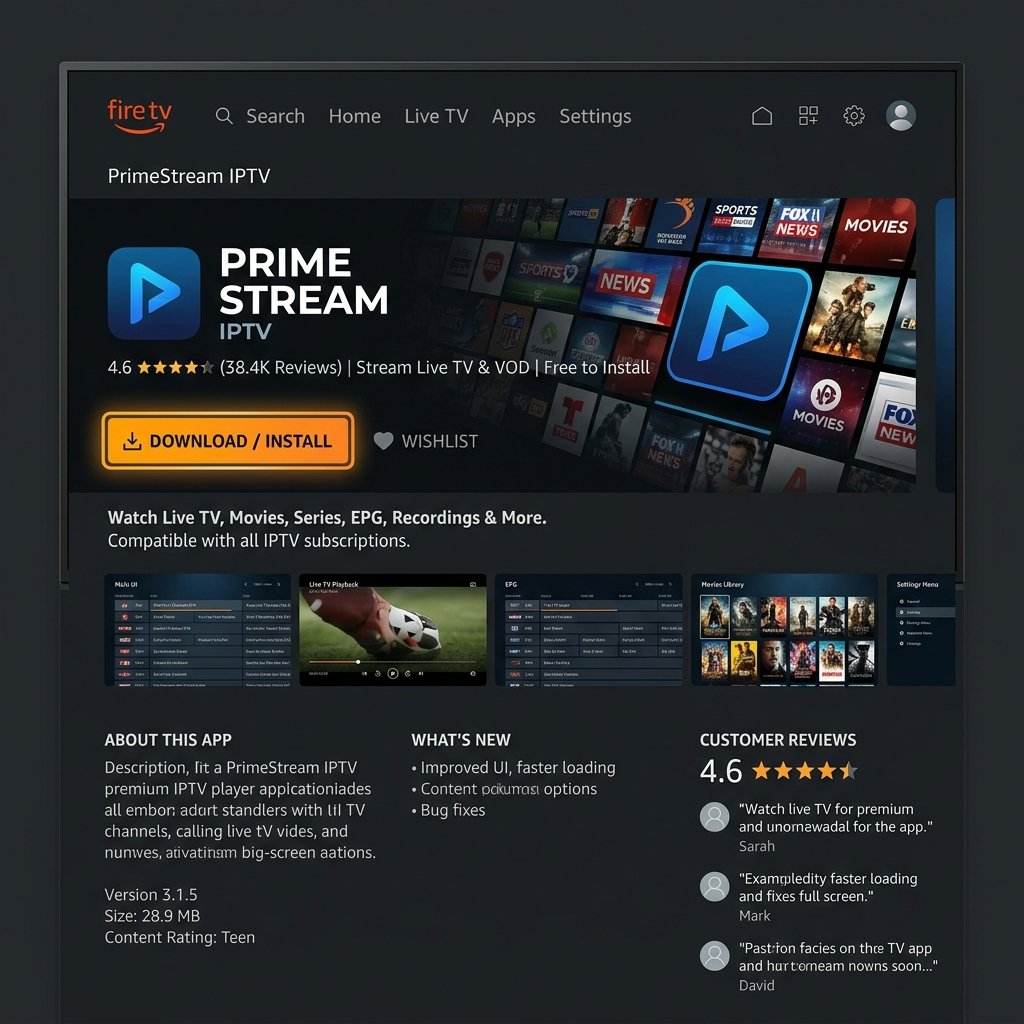
Click on the app tile from the search results to open its dedicated store page. Select the Get or Download button. Fire OS will automatically download and install the application onto your internal device storage.
For additional details regarding operating systems and Smart TV installation options, review our general IPTV installation guide.
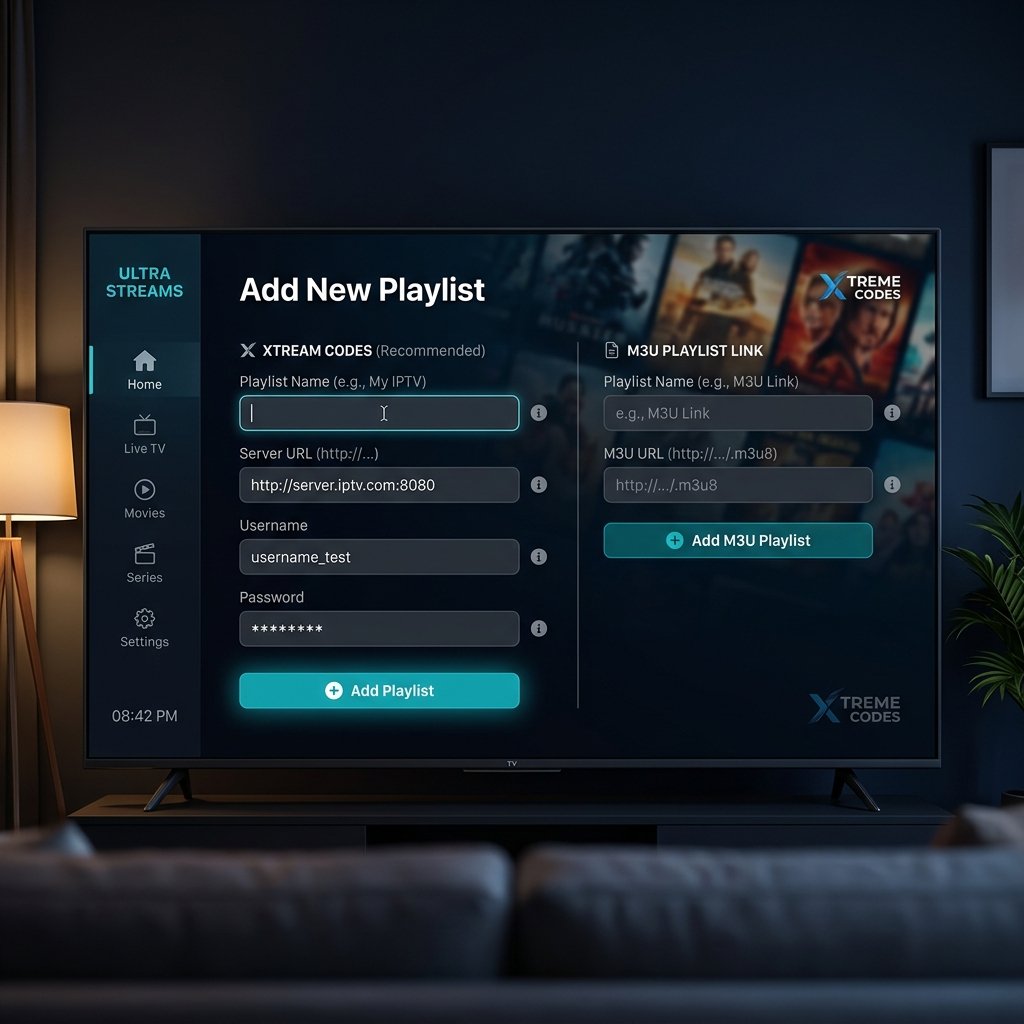
Launch the newly installed application. On the welcome screen, select Add Playlist or Login with Xtream Codes API. Carefully enter the Server URL, Username, and Password (or your M3U Playlist link) provided by your IPTV provider.
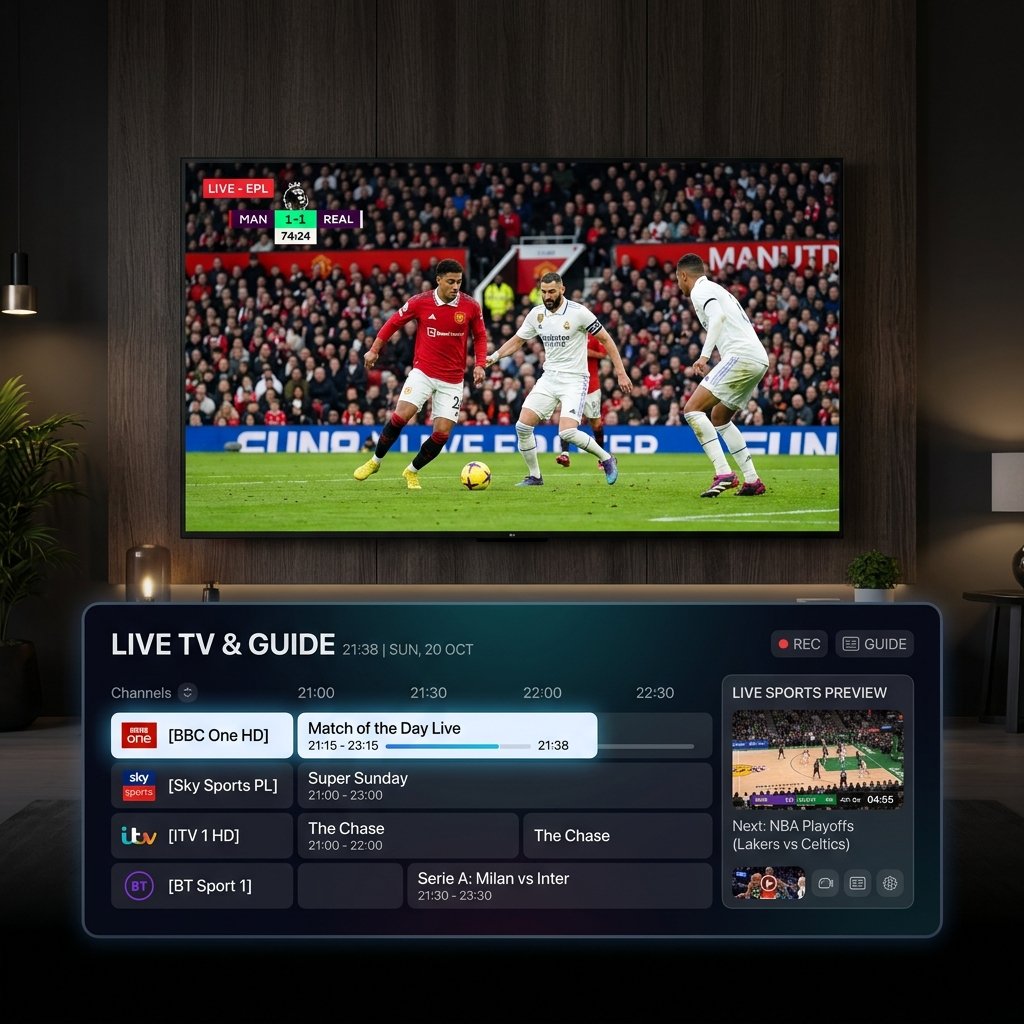
After clicking Add User or Save, the app will download your channel categories, VOD movie libraries, and TV guide data. Select any channel from the guide to start watching live HD television!
To learn how to sync program schedules and fix blank channel guides, read our complete guide on how IPTV EPG works.
Method 2: Sideloading IPTV Apps via Downloader (For Advanced Apps)
Some premium applications (like TiviMate Companion or custom APK versions) are not hosted directly on the Amazon Appstore. In these cases, you can use the free Downloader app to sideload the APK file safely.
- Install Downloader: Search for Downloader on the Firestick Appstore (orange icon) and install it.
- Enable Developer Options: Go to Settings > My Fire TV > About. Highlight the first item and press the Select button on your remote 7 times quickly until a popup says “No need, you are already a developer.”
- Allow Apps from Unknown Sources: Go back to Settings > My Fire TV > Developer Options. Select Install Unknown Apps and toggle Downloader to ON.
- Download the APK: Open the Downloader app, enter the official APK URL or Downloader shortcode for your desired IPTV player app, and click Go.
- Install APK: Once the download completes, click Install, then open the app and enter your Xtream Codes API details.
Top 5 Best IPTV Player Apps for Firestick in 2026
Choosing the right player software makes a massive difference in channel switching speed, Electronic Program Guide rendering, and overall visual polish. Explore our full comparison of the best IPTV players available in 2026. Below is an overview of the top 5 options for Amazon Firestick users:
1. TiviMate IPTV Player (Best Overall)
TiviMate is universally considered the premier IPTV player for Fire TV devices. Designed specifically for TV screens and remote controls, TiviMate features a sleek interface that mirrors traditional satellite or cable set-top boxes. Its Pro version unlocks multi-screen viewing (up to 4 channels simultaneously), channel favoriting, custom category management, and scheduled recording.
2. IPTV Smarters Pro (Best Multi-Platform Player)
IPTV Smarters Pro is one of the most widely used applications globally. It offers clean section tabs for Live TV, Movies, Series, and Catch-up TV. It seamlessly parses Xtream Codes API logins and supports internal or external video players (such as VLC or MX Player) for smooth video decoding.
3. XCIPTV Player (Best Free Option)
XCIPTV features a modern, user-friendly dashboard with two built-in media players (ExoPlayer and VLC Player) with adaptive HLS streaming. It requires zero configuration, handles heavy EPG guides efficiently, and has built-in speed test utilities.
4. GSE Smart IPTV (Best for Custom Playlists)
GSE Smart IPTV is a versatile player that supports M3U playlists, JSON formats, and external XMLTV program guides. It includes dynamic language switching and subtitle support, making it ideal for international viewers in the USA.
5. Smart IPTV / SS IPTV (Best Web-Managed Setup)
Smart IPTV allows users to upload M3U playlist URLs remotely via a web browser using their Firestick’s MAC address. While simpler than TiviMate, it provides a lightweight streaming experience for older Fire TV Stick models.
| IPTV Player App | Interface Rating | Multi-Screen Support | EPG Support | Price Tier |
|---|---|---|---|---|
| TiviMate IPTV Player | 9.8 / 10 | Yes (Up to 4 screens) | Advanced XMLTV / Multi-EPG | Free / $10/yr Pro |
| IPTV Smarters Pro | 9.3 / 10 | Yes (2-4 screens) | Standard Xtream EPG | Free / Optional Premium |
| XCIPTV Player | 8.9 / 10 | No | Built-in EPG Grid | 100% Free |
| GSE Smart IPTV | 8.5 / 10 | No | External XMLTV Links | Free / In-App Purchases |
| Smart IPTV (SIPTV) | 8.0 / 10 | No | Basic Channel EPG | One-time ~$5 fee |
How to Configure Electronic Program Guide (EPG) on Firestick
An Electronic Program Guide (EPG) provides live channel listings, show descriptions, episode titles, and broadcast times directly on your TV screen. Without an active EPG, browsing hundreds of live streams can become overwhelming. To learn more about XMLTV sources, EPG formatting, and troubleshooting missing guide schedules, check out our comprehensive tutorial on how IPTV EPG works.
To configure your EPG in TiviMate or IPTV Smarters Pro:
- Navigate to Settings > Playlists inside your IPTV app.
- Select your active playlist and click EPG Sources.
- Select Add EPG Source and paste the XMLTV URL provided by your service provider.
- Set the Update Interval to 24 hours to automatically pull fresh schedule updates.
- If TV guide showtimes are off by a few hours, adjust the Timezone Offset setting (e.g., -5 hours for US Eastern Standard Time).
10 Proven Solutions to Fix IPTV Buffering & Freezing on Firestick
Nothing ruins a live NFL game or movie night faster than video buffering or frozen video feeds. If you experience lag, freeze frames, or audio desync on your Firestick, test these 10 proven troubleshooting solutions. You can also read our dedicated guide on how to stop IPTV buffering for more technical network tweaks.
1. Clear Firestick App Cache & Data
Over time, cached streaming data fills up the limited internal storage of your Fire TV Stick, causing memory bottlenecks. Go to Settings > Applications > Manage Installed Applications, select your IPTV player app, click Clear Cache, and restart the app.
2. Switch Video Hardware Decoder (HW vs. SW)
Most IPTV apps let you select how video streams are processed. Navigate to your app’s Video Player settings and switch the video decoder between Hardware (HW), Software (SW), or Hardware+ (HW+). Hardware decoding utilizes the Firestick GPU, while Software decoding relies on processor cores.
3. Change Stream Format (HLS vs. TS)
IPTV providers deliver channel feeds in MPEG-TS (Transport Stream) or HLS (HTTP Live Streaming) formats. TS streams offer lower latency for live sports, but HLS streams handle Wi-Fi packet drops more gracefully. Switch stream format settings inside your IPTV app’s account configuration menu.
4. Test for ISP Throttling
Many US Internet Service Providers (ISPs) actively throttle high-bandwidth video streams during peak evening hours (7 PM to 11 PM). If your overall internet speed test shows 100 Mbps but live TV buffers constantly, your ISP may be throttling streaming traffic. If channels continue to fail, check our troubleshooting checklist on why your IPTV service may not be working.
5. Change Firestick DNS Settings
Default ISP Domain Name System (DNS) servers can be slow or overcrowded. Changing your Firestick DNS servers to custom high-speed resolvers significantly improves channel connection times:
- Google Public DNS: Primary `8.8.8.8` | Secondary `8.8.4.4`
- Cloudflare DNS: Primary `1.1.1.1` | Secondary `1.0.0.1`
6. Switch to 5 GHz Wi-Fi or Use an Ethernet OTG Adapter
The 2.4 GHz Wi-Fi frequency band is susceptible to interference from household electronics, microwaves, and neighbor Wi-Fi routers. Connect your Firestick to your router’s 5 GHz Wi-Fi network. For maximum stability, purchase an inexpensive Amazon Ethernet Adapter to connect your Firestick directly to your router via an RJ45 cable.
7. Increase Video Buffer Size in App Settings
In apps like TiviMate, go to Settings > Playback > Buffer Size and increase the buffer setting from None / Small to Medium or Large. This forces the Firestick to preload several seconds of video stream buffer before rendering, neutralizing brief Wi-Fi spikes.
8. Force Stop Background Applications
Fire OS often leaves unused streaming apps running in the background, consuming CPU resources and system memory. Download the free Background Apps & Process List utility from the Fire TV Appstore to quickly force-stop idle background processes.
9. Power Cycle Your Remote, Firestick, and Router
Unplug the power adapter of your Amazon Firestick and home router from the wall outlet. Wait 60 seconds, then plug the router back in first. Once internet connectivity is restored, plug in your Firestick. Power cycling clears temporary RAM bottlenecks and establishes a clean network session.
10. Test Subscription & Free Trials Before Purchasing
If hardware and network optimizations do not stop buffering, the issue may stem from overcrowded provider servers. Before committing to long-term plans, test services using an OURAIPTV free trial and review flexible subscription pricing options for multi-device support.
Is IPTV Legal to Use on Firestick in the USA?
A common question among American cord-cutters is whether streaming live TV via IPTV on a Firestick is legal in the United States. To understand copyright compliance and broadcasting standards fully, read our detailed analysis on whether IPTV is legal in the USA.
In summary:
- The Technology is 100% Legal: IPTV is simply a digital transmission protocol used by major telecommunications companies, network broadcasters, and streaming platforms.
- Content Rights & Licensing: Legality depends entirely on whether the provider holds valid broadcasting distribution rights for the television networks and copyrighted content they stream.
- Consumer Safety: Always choose authorized, legitimate service providers that respect copyright laws and protect consumer data privacy.
Frequently Asked Questions (FAQ)
Can you watch IPTV on a Firestick in the USA?
Yes! Amazon Firestick runs Fire OS, allowing you to install top IPTV player applications such as TiviMate, IPTV Smarters Pro, and XCIPTV to stream live television channels using your subscription credentials.
How do I install an IPTV player app on Firestick?
You can search for available players (like IPTV Smarters) directly on the Fire TV Appstore using the Find menu. For advanced players, use the free Downloader app to sideload the APK file after enabling Install Unknown Apps in Developer Options.
Why is IPTV buffering on my Firestick and how do I fix it?
Buffering is usually caused by weak 2.4 GHz Wi-Fi signals, background app memory congestion, ISP bandwidth throttling, or small buffer size settings. Switching to 5 GHz Wi-Fi or Ethernet, clearing app cache, changing DNS servers to 8.8.8.8, and increasing player buffer size fixes most buffering issues.
Is IPTV legal to use on Amazon Firestick in the USA?
Yes, IPTV technology is completely legal in the United States. However, streaming services must hold appropriate broadcasting and content distribution licenses for the television networks they deliver.
Can I record live TV on my Firestick using an IPTV player?
Yes! Apps like TiviMate Pro support scheduled background recording. Because Firestick internal storage is limited (8 GB or 16 GB), we recommend plugging an external USB flash drive into your Firestick using an OTG cable to store recorded TV shows.
How much internet data does IPTV stream per hour?
Streaming IPTV in Standard Definition (480p) consumes approximately 1 GB per hour. High Definition (1080p HD) channels consume around 3 GB to 4 GB per hour, while 4K Ultra HD streams consume up to 7 GB to 10 GB per hour.